
B2B Portal
Take a virtual tour of the KHS America B2B website
Watch the video below to see an overview of the useful business tools provided by the KHS America B2B Dealer Portal
The KHS America B2B dealer portal provides the following features:
- An easy-to-navigate dealer account dashboard quickly allows our retail buyers to enter bulk orders, see new announcements, and view tracking information for recent orders.
- Our authorized retail partners can also view product and parts information and availability, place orders online, check order statuses, and review order history.
- The platform allows access to invoices, account maintenance, credit status and facilitates online payments.
- Additionally, product data and build sheets for KHS America brand products can be downloaded from the new portal.
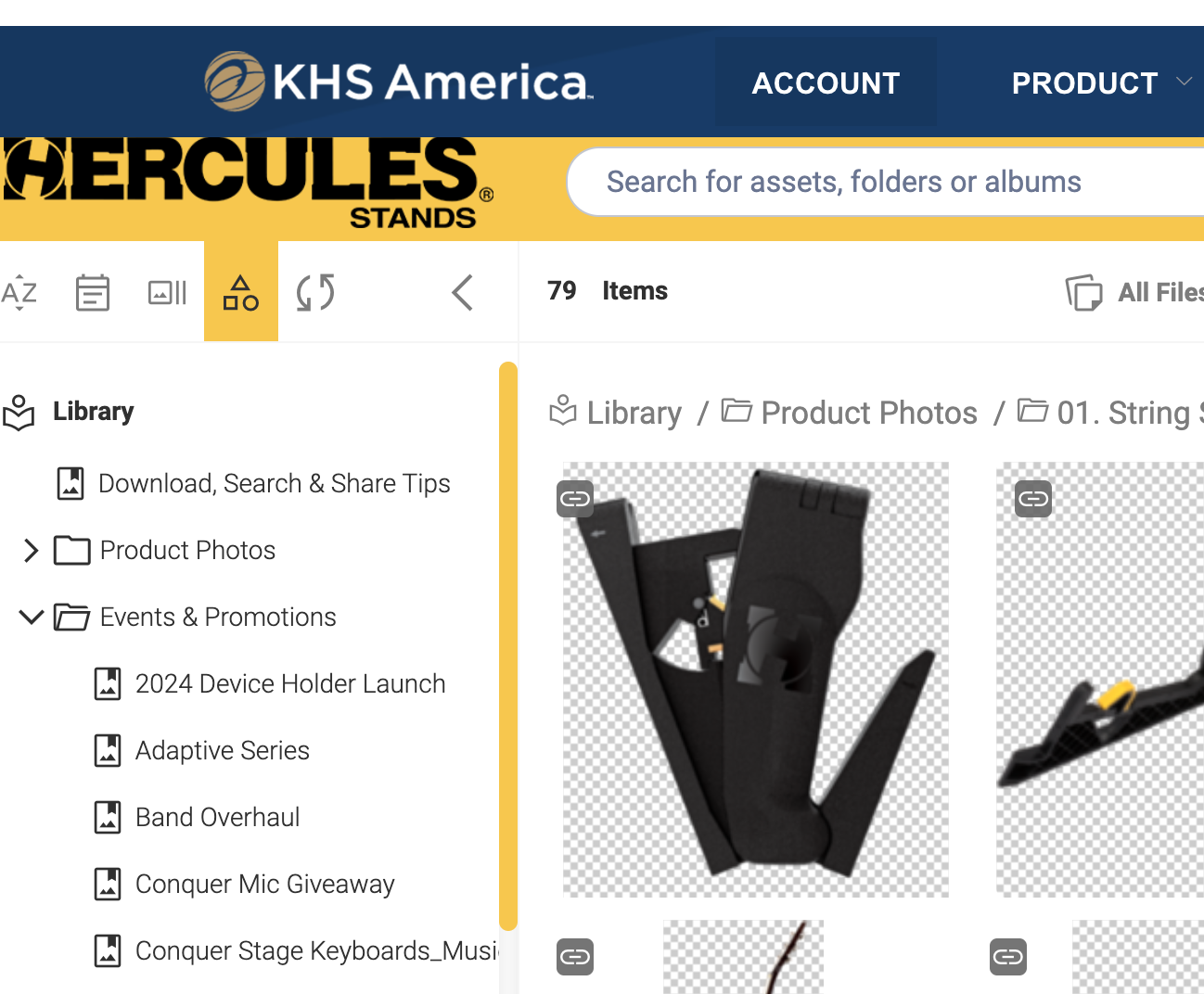
- The KHS America Digital Asset Management platform, Canto provides an engaging user interface for accessing all available marketing materials and facilitates download of high-resolution product images, sharing of video content, and access to promotional assets, all from within our new dealer portal.
How-To Video Tips
Learn how to get more out of our B2B Portal with these step-by-step video guides.
Bulk Order Entry
Bulk Order Entry
Viewing Time: 1:45
Read Transcription
This video will show you how to use the Bulk Ordering feature of the KHS America B2B Portal.
Once logged in, on your Account dashboard there is a location for bulk order entry.
If you only have a few models to enter, you may want to manually type in the model numbers and quantities.
After adding one model and the quantity you wish to order, click on the + sign to the right of the trash can to go to a new line, then enter the next model and quantity you wish to order.
Our system has smart completion, so if you start typing a model number you will see options that begin with the data you have already entered so you can click on the item you want for even faster entry.
Once you are ready to check out, click ADD TO CART And the items will be added to your cart. Then you can check out as normal.
If you have a larger number of items to order, you can save time by pasting your order entries into an Excel template.
First, download the Excel template by clicking on the DOWNLOAD TEMPLATE button.
Open the template in Excel and add the items you wish to order. You just need the model number and quantity to place your order.
Once you have your Excel file ready, save it and then upload the file using the UPLOAD EXCEL button.
Now click ADD TO CART and your entire order will be added to your cart. Then check out as normal.
If you have questions or issues, please reach out to your sales representative or contact us at service.usa@khsmusic.com or 888.627.3987.
Make a Payment
Make A Payment
Viewing Time: 2:20
Read Transcription
To get started, log into your B2B portal account. If you don’t have an account set up yet, ask your rep or inside sales contact to add you to our system.
Once logged in, click on FINANCIAL DETAILS in the top menu, then select Payment. Here you will see a list of any outstanding invoices.
For the invoice you would like to pay, in the Select to Pay column, check the checkbox and the full amount is entered in the Payment Amount field. You can pay the full amount or type in any amount you would like to submit. You can also make a payment on more than one invoice at a time. Select another invoice by checking the Select to Pay checkbox, then type in the amount you wish to pay.
Once your payment amounts have been entered, click on the Review Payment button to select how you would like to pay, by credit card or by bank draft. If someone at your store has already added a credit card or bank to your account, you may see them listed here and can select one of these as your payment option.
Or to charge a new card, click on Charge a Credit Card. In the popup window, enter your credit card information.
If you would prefer not to save your credit card information to your account, you can click MAKE PAYMENT and your card will be charged without adding the card to your account.
Or to add your card to your account for the current and any future payments, click “Add info for next use” and your card will be added to your account.
To submit the payment, check the Select Payment checkbox and click Make Payment. You will see the payment you just made, with the clearing document information and the remittance, which you can download as a PDF or Excel file.
If you have questions or issues, please reach out to your sales representative or contact us at service.usa@khsmusic.com or 888.627.3987
Update Payment Information
Update Payment Information
Viewing Time: 1:56
Read Transcription
You can add or remove a credit card or bank account for your store from within the KHS America B2B Portal.
To get started, log into your B2B portal account. If you don’t have an account set up yet, ask your rep or inside sales contact to add you to our system.
Once logged in, click on FINANCIAL DETAILS in the top menu, then select Payment.
For any invoice you have, In the Select to Pay column, check the checkbox and then click the Review Payment button.
Don’t worry, you won’t have to pay the invoice now, this step simply allows you to access the banking and card information for your store account.
If you or another team member added credit cards or banking information previously, you will see them here.
You can delete an existing card or bank by clicking the Delete button next to the account you would like to remove.
To add a new card or bank account click the Add button. In the popup, select the type of account you want to add and fill in your information…
Now the card or bank account will be available for future payments.
You can also use the Charge a Credit Card or Charge a Bank Account buttons to add these types of accounts.
Fill out the card or bank information, then click the “Add info for next use” button.
This will save the card or bank information to your account.
If you don’t wish to pay now, simply click out of the popup. You new card or bank information will still be available for future payments.
If you have questions or issues, please reach out to your sales representative or contact us at service.usa@khsmusic.com or 888.627.3987
Apply A Credit
Apply A Credit
Viewing Time: 1:30
Read Transcription
To get started, log into your B2B portal account. If you don’t have an account set up yet, you can have an invitation sent to you. Ask your rep or inside sales contact to add you to our system.
Once logged in, click on FINANCIAL DETAILS in the top menu, then select Payment. You will see your invoices here. First select the invoice or invoices you would like to apply the credit memo to by checking the checkbox in the Select to Pay column.
Next select the credit or credits to apply to the payment. A credit is indicated by the minus sign appearing before the amount. Click the Review Payment button and you will see the invoice you are paying, the credit that is being applied, and the new amount due.
Complete your payment as normal by selecting a payment method on file or by adding a new payment option. Your downloadable invoice will reflect the invoices paid and the credit invoice that was applied.
If you have questions or issues, please reach out to your sales representative or contact us at service.usa@khsmusic.com or 888.627.3987.
Add a New User Account
Add a New User Account
Viewing Time: 2:11
Read Transcription
To get started, log into your B2B portal account. If you don’t have an account set up yet, you can have an invitation sent to you. Ask your rep or inside sales contact to add you to our system.
You must already be an admin for your store to add a new user. If you’re the store owner, you’re already an admin and can add your employees.
To do so, click on the Admin Menu, then Set Up User. Click the Add button, then fill in the information for the person you would like to add.
Enable the user and add email categories the new user should receive. For example, an Accounts Payable user might receive:
• Invoices,
• Upcoming Payment Reminders
• and Past Due Invoices.
This step is optional, if the new user would prefer not to receive emails, just leave this blank.
Now select the role or roles the new user should have.
For example, a finance person might have the Accounts Payable role. This would allow them to pay invoices for your account and access your store’s credit details.
Or for an employee that needs to see product availability, but shouldn’t have the ability to purchase products, you can select the Product Display role.
A display role means that the user can see the information but can’t perform actions for that role on the B2B portal.
If an employee needs more than one role, you can move over as many roles as needed.
Once all roles have been selected for the new user, select your store name… Then click the Save button.
Now you will see the new user in the list of users for your account.
Frequently Asked Questions
Account Details
How can I sign up for a KHS America B2B Portal account?
If your company is already set up on our B2B Portal, the admin at your store can create an account for you.
If you are a new store and need to be set up on the B2B Portal, contact your dedicated sales representative. You can also email us at service.usa@khsmusic.com or call us at 1-800-446-6010.
I can't find the email invitation to create my account, can you resend it?
Email us at service.usa@khsmusic.com or call us at 1-800-446-6010 and we’ll email you another invitation.
How do I reset my password?
To reset your password:
1. Click the Reset Password link beneath the sign in area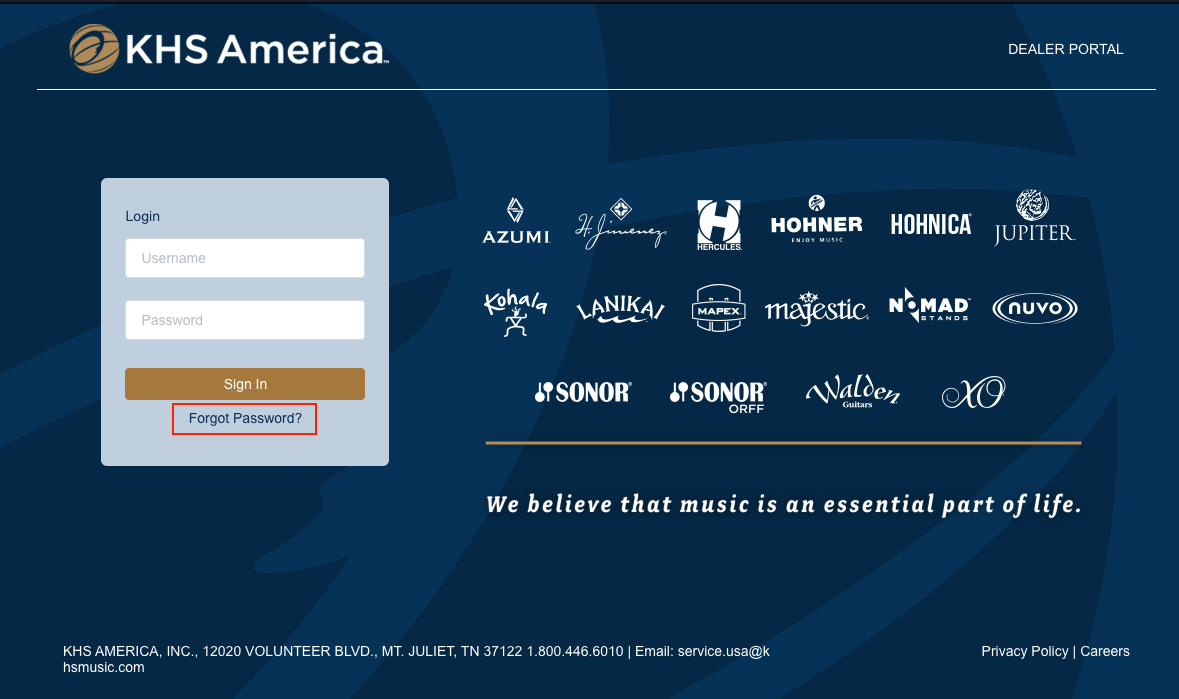
2. Enter the email address used for your B2B account and click the Send Verification button to receive a code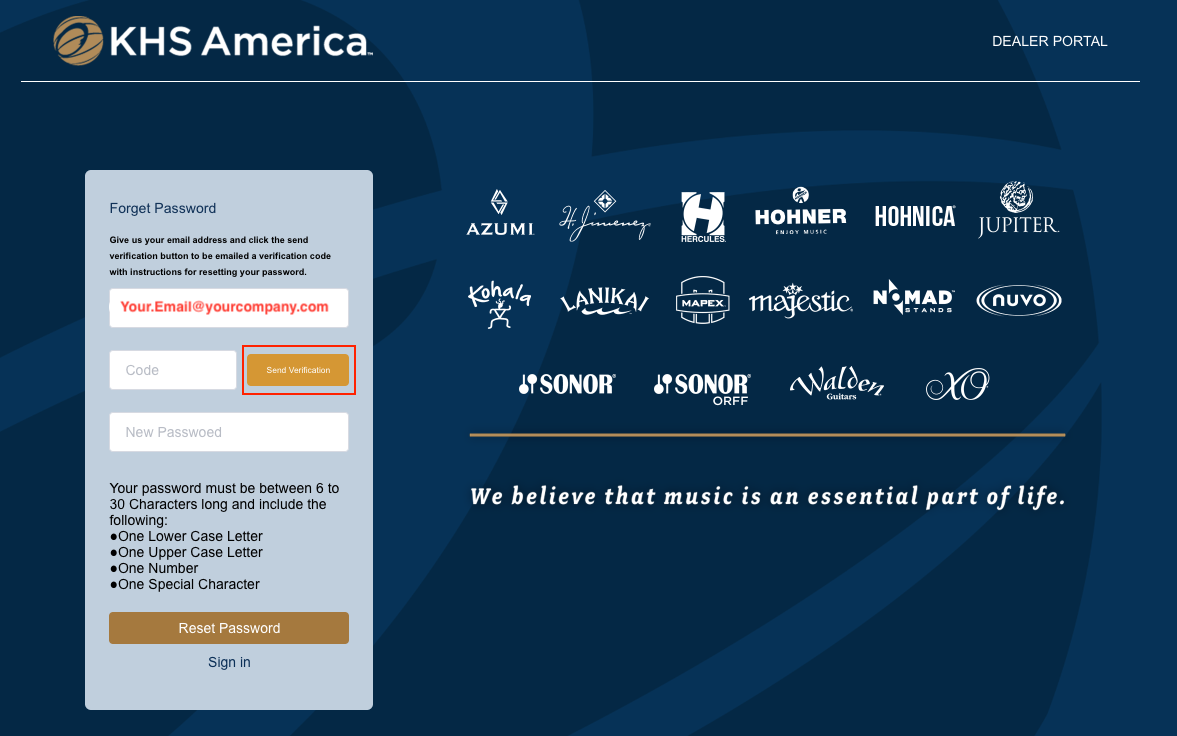
3. You should receive an email from KHSA.B2B.MAIL@KHSMUSIC.COM with a code, enter the code in the code textbox
4. Enter your new password, then click the Reset Password button
5. Click the Sign in button and sign in as normal
Your password must be between 6 to 30 Characters long and include the following:
- One Lower Case Letter
- One Upper Case Letter
- One Number
- One Special Character
What do I do if I can't log in?
If you can’t login and you are sure your username and password is correct, email us at service.usa@khsmusic.com or call us at 1-800-446-6010 and let us know. Please be prepared to provide details about your account, your operating system and the browser you are using.
How do I contact my sales rep?
If you don’t know how to contact your representative directly, email us at service.usa@khsmusic.com or call us at 1-800-446-6010.
Placing An Order
How do I search for products or parts?
There are several ways to search for items on the KHS America B2B Portal. If you know the model number you’re looking for, you can select Product –> Product Search from the menu, then on the left there is a filtering section, type in the model number in the Filter/Find box and click “Search” at the bottom of that section.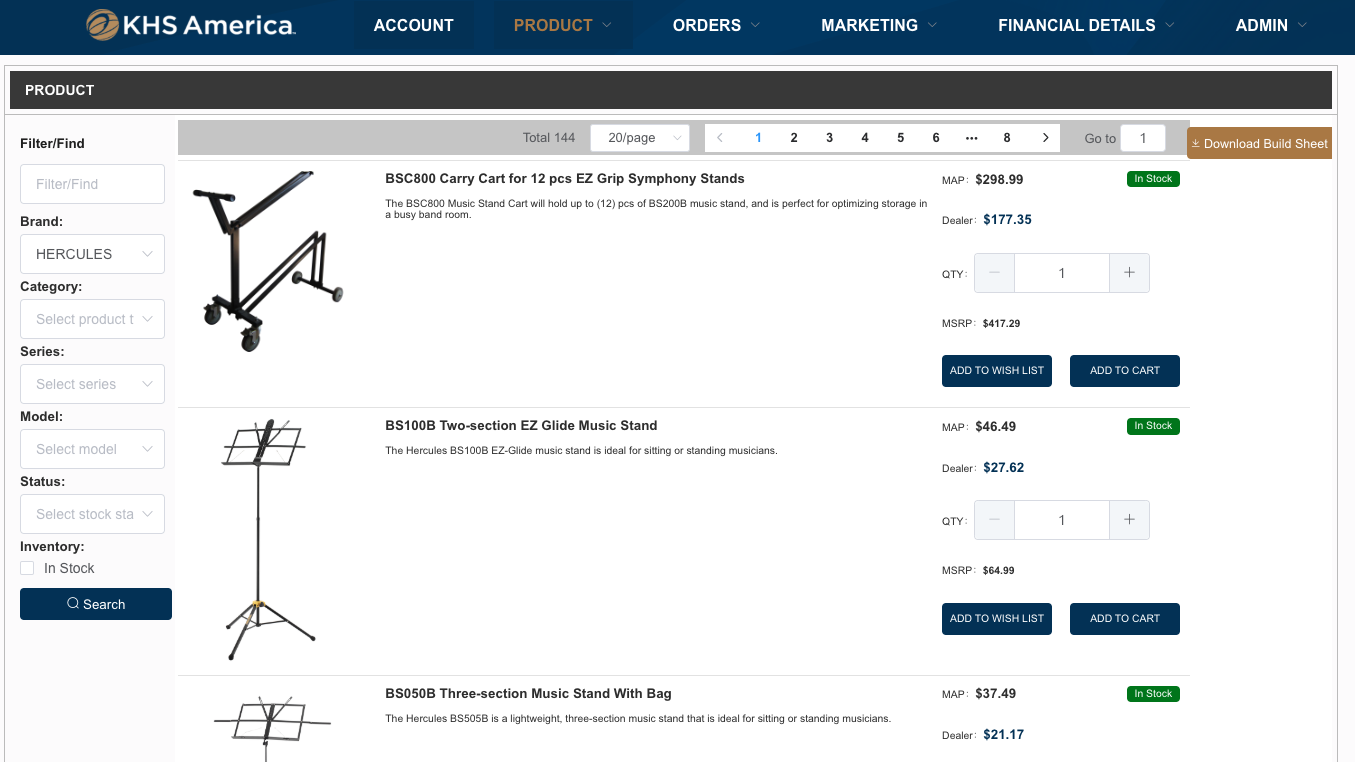
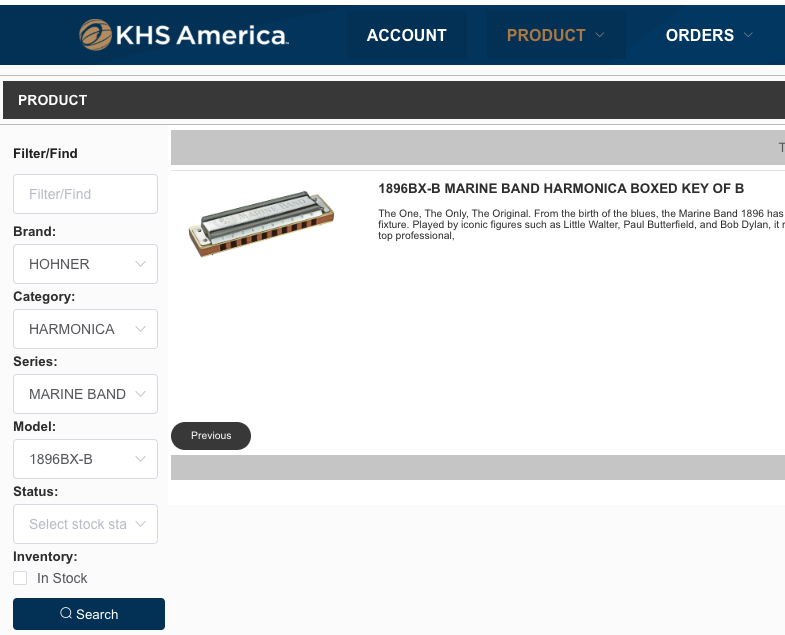
You can also search by Brand, Category, Series, or Model, or a combination of those options.
For parts, select Product –> Parts Search from the menu, then use the filtering fields on the left side of the page to filter for the brand, the category, the series, and the model number of the instrument. From this selection you will see a link for the schematics of the instrument. Clicking the schematics link will bring up a list of parts for that model. Scroll down to find specific parts and add them to your cart.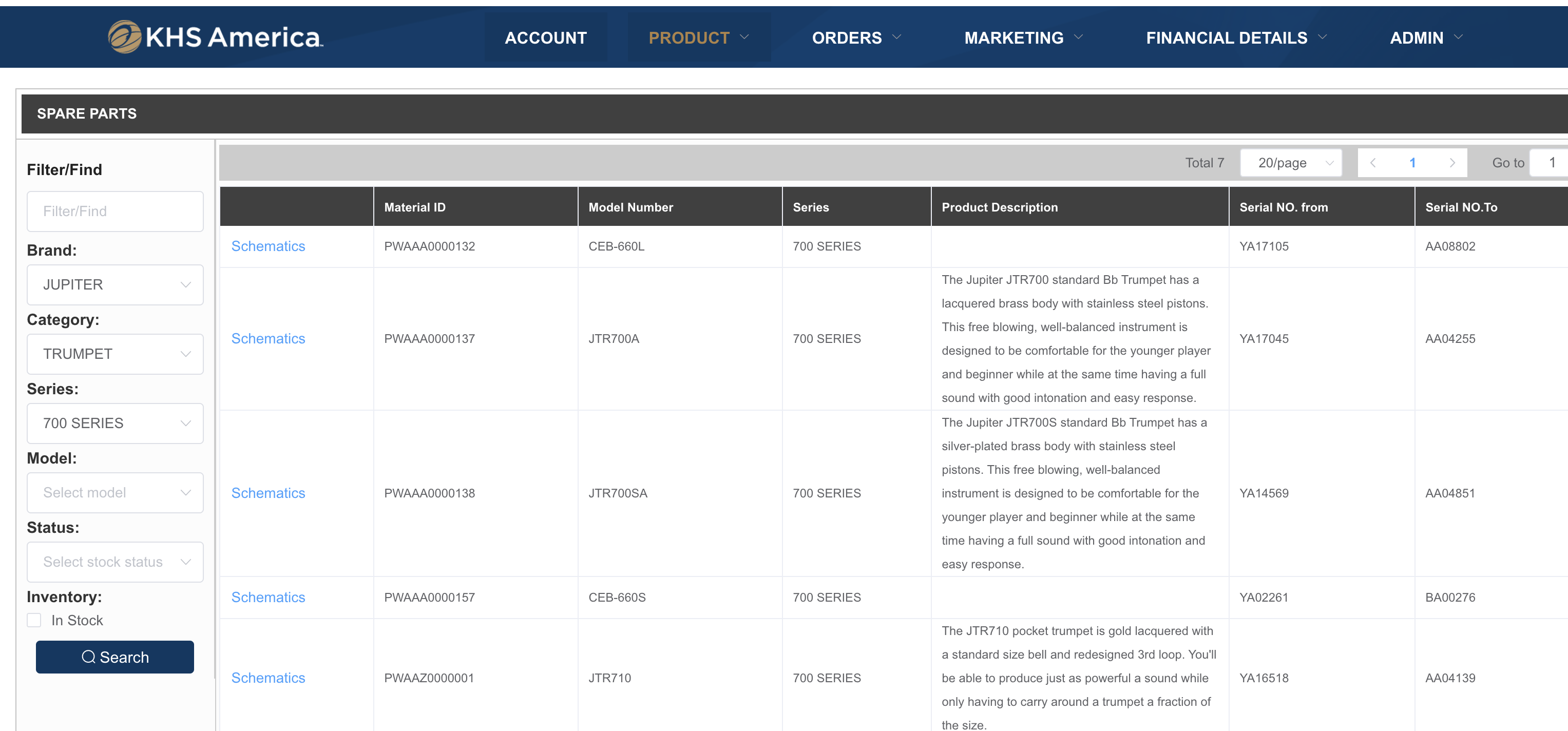
Note: At the current time, searching a part model number directly is not available.
What does the Wish List button do?
You can add items to your wish list, then view them by clicking on the heart icon in the top right. From here you can add items directly to your cart by clicking on the Add To Cart button.
Can Out Of Stock products be purchased?
Yes! You can add out of stock products to your cart and place an order. The item(s) will be back-ordered and we will contact you with an estimated delivery time.
Can Discontinued products be purchased?
Yes! If the discontinued items has availability greater than 0, you can purchase up to the amount showing as available. However, discontinued items cannot be re-ordered and service parts may be limited.
Can I place a bulk order through the B2B portal?
Yes! Bulk orders are uploaded as an Excel file from your Accounts page or Shopping Cart page.
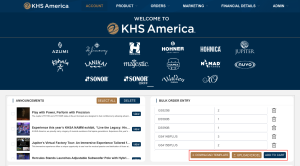
The Excel template can also be downloaded from those pages. For more information about bulk order entry, watch our Bulk Order Entry video tutorial.
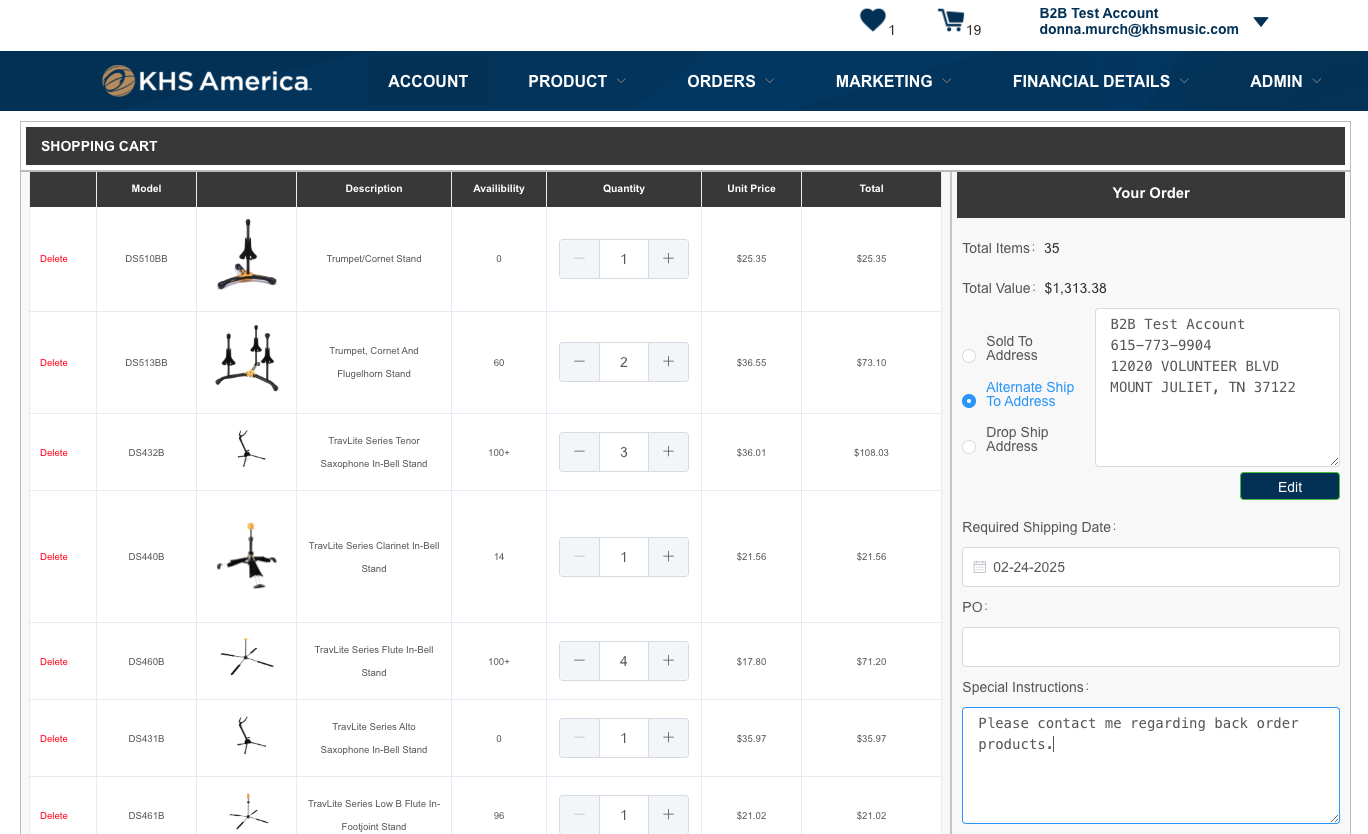
Can an order be shipped to a different location or a delivery note added?
Yes! At checkout there is an option for an alternate shipping address or a drop ship address. You can also add a delivery note in the Special Instructions box on the checkout page below the address information.
Order Status & Order History
Where is tracking information located?
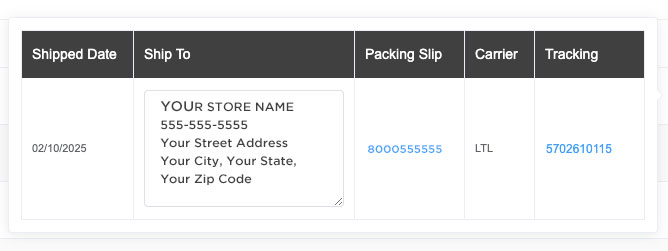
You can see recent shipments on your Accounts page.
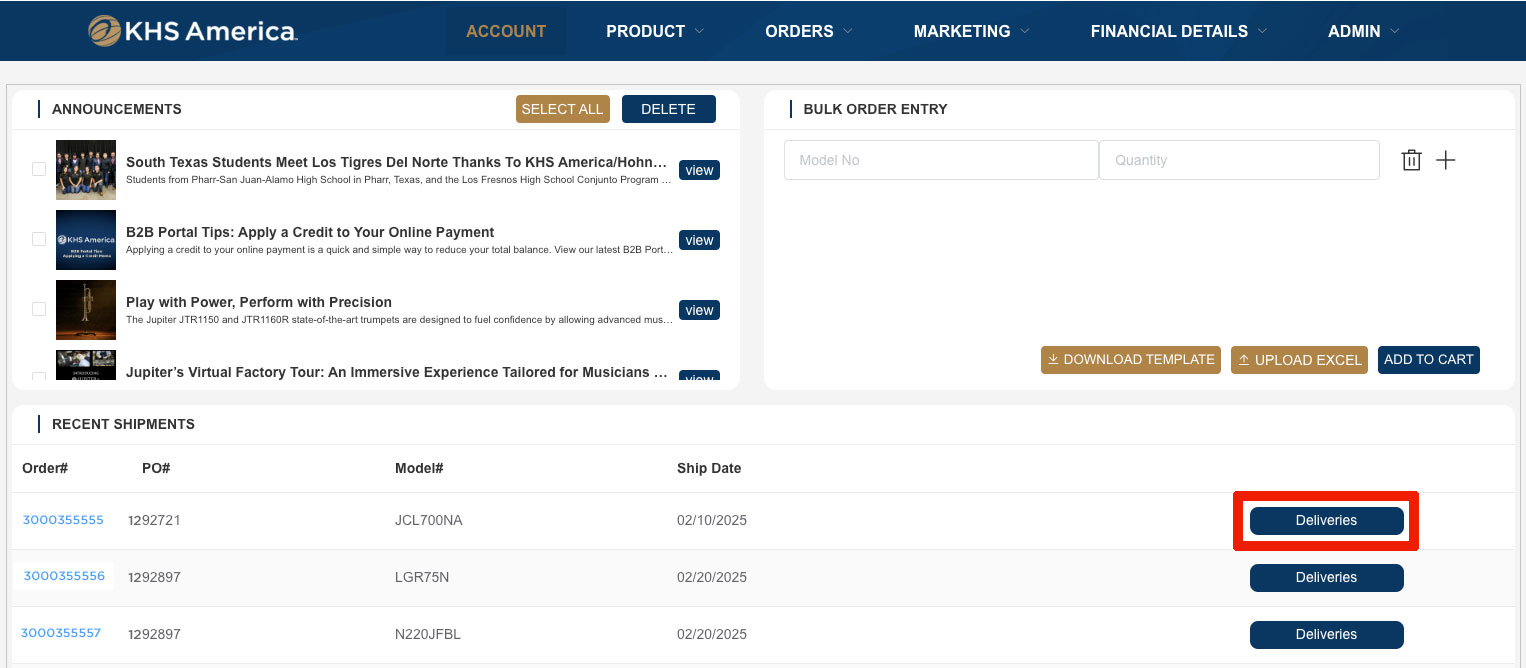
Click on the Deliveries button to view details of the shipment.
How can I view all my Open Orders?
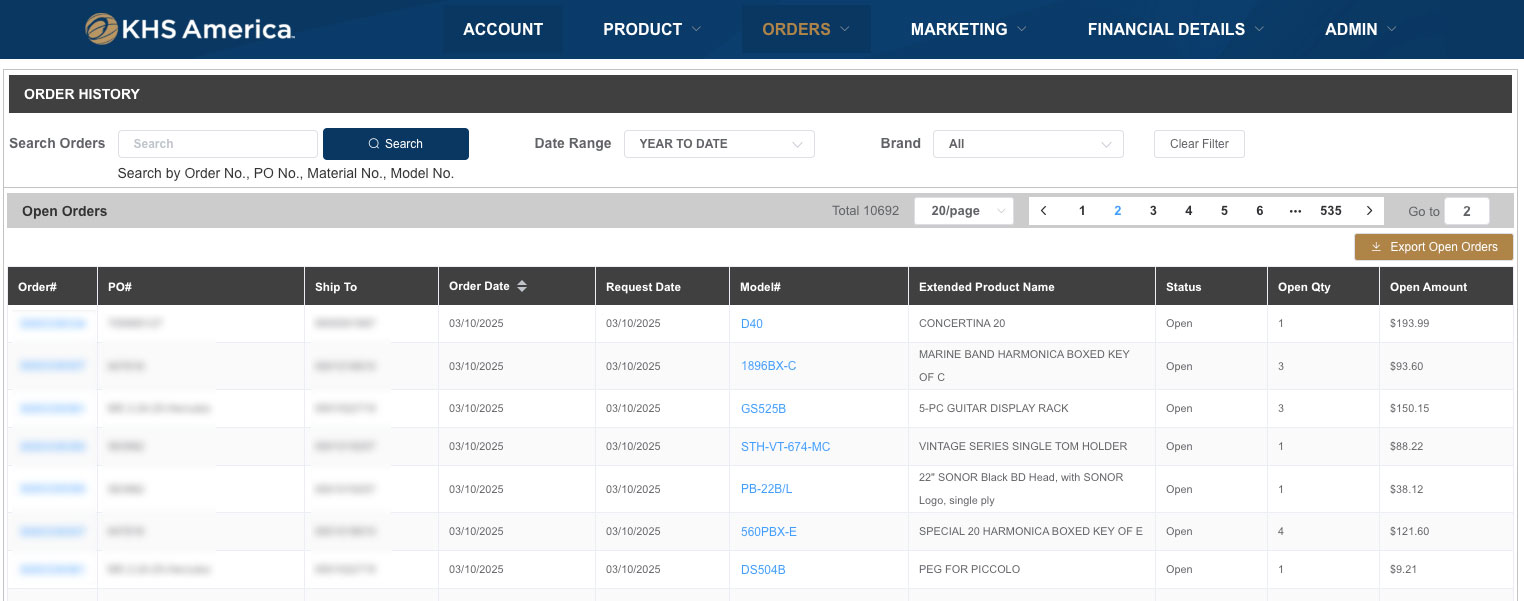
You can view Open Orders by selecting Orders -> Order History from the top menu. Open orders are listed first, Shipped orders are listed beneath open orders.
You can search by Order No., PO No., Material No., Model No., date range, and brand.
How can I view all my Shipped Orders?
You can view all shipments by selecting Orders -> Order Status from the top menu. Scroll down to the Shipped Orders section, and click on the Deliveries button for the order you need to find details for. You will be able to see the ship date, shipped to address, the packing slip, the carrier, and the tracking number.
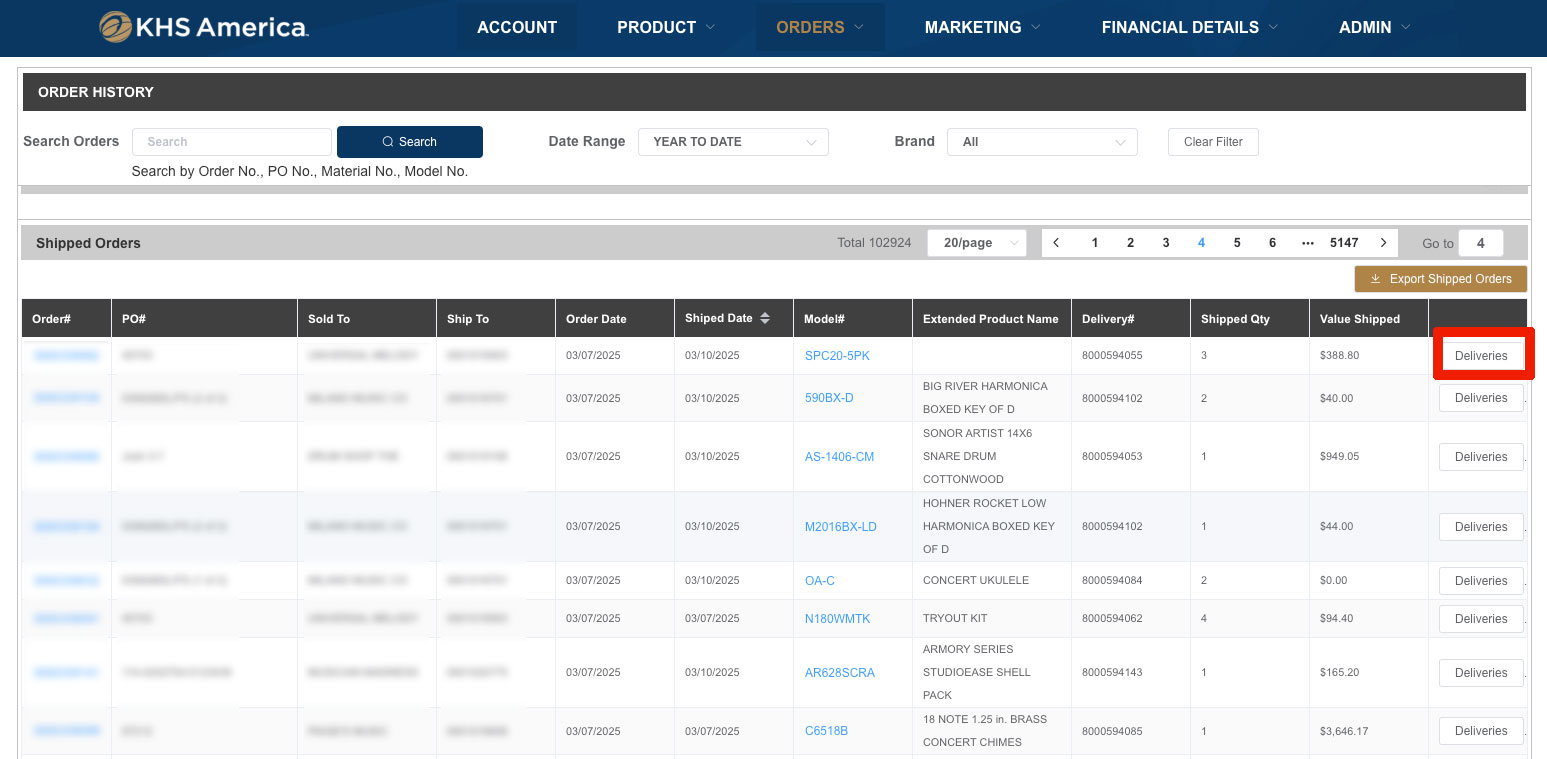
You can search for orders by Order No., PO No., Material No., Model No., date range, and brand.
Where can I find details for what I ordered?
To view details of your order, on the Account page under Shipments, you can click on Deliveries and then click on the packing list link to download the packing list.
You can also view detailed order information on the Order Status page. Find the invoice you would like to see the details for, then click the View button to see details.
How can I change an order I've already placed?
To change an order you’ve placed on the B2B Portal, please contact your sales representative to update your order. You can also email us at service.usa@khsmusic.com or call us at 1-800-446-6010.
I received the wrong item in my order, what do I do?
If you’ve received the wrong item or a damaged item, please contact your sales representative or you can email us at service.usa@khsmusic.com or call us at 1-800-446-6010.
Financial Details
Can I make a payment for my account online?
Yes! We accept credit, debit, and bank payments. You may make partial payments, and split payment between payment method types. Please note that credit card payments are subject to a 2.5% processing fee.
To make a payment, select an invoice and click the Review Payment button.
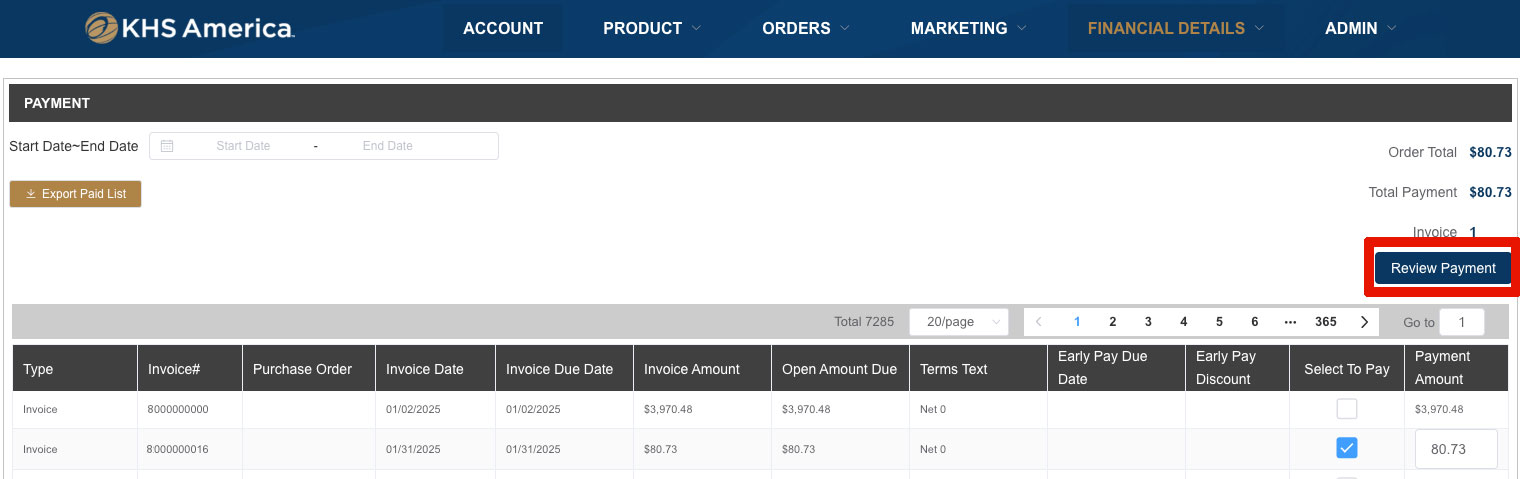
If you want to add a payment method, click the Add button.
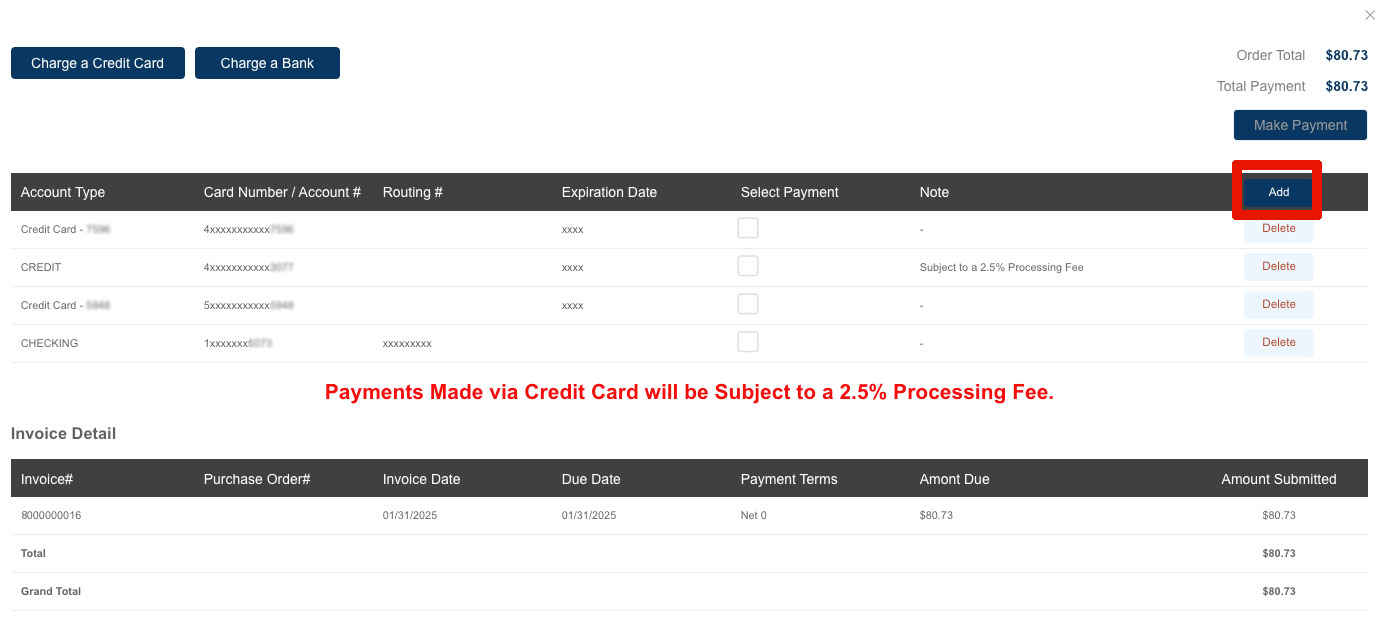
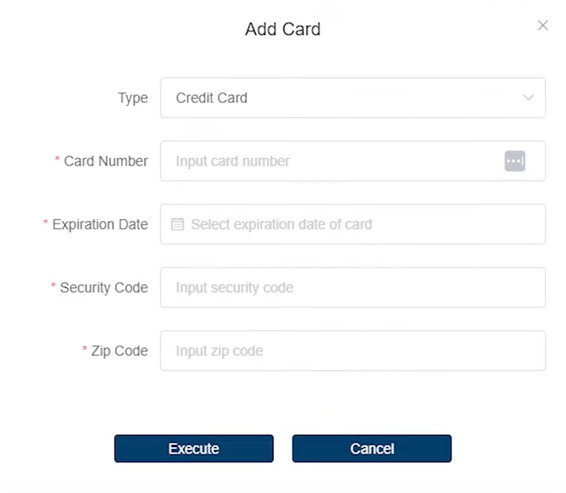
Input your information and click the Execute button and your new payment information will be saved.
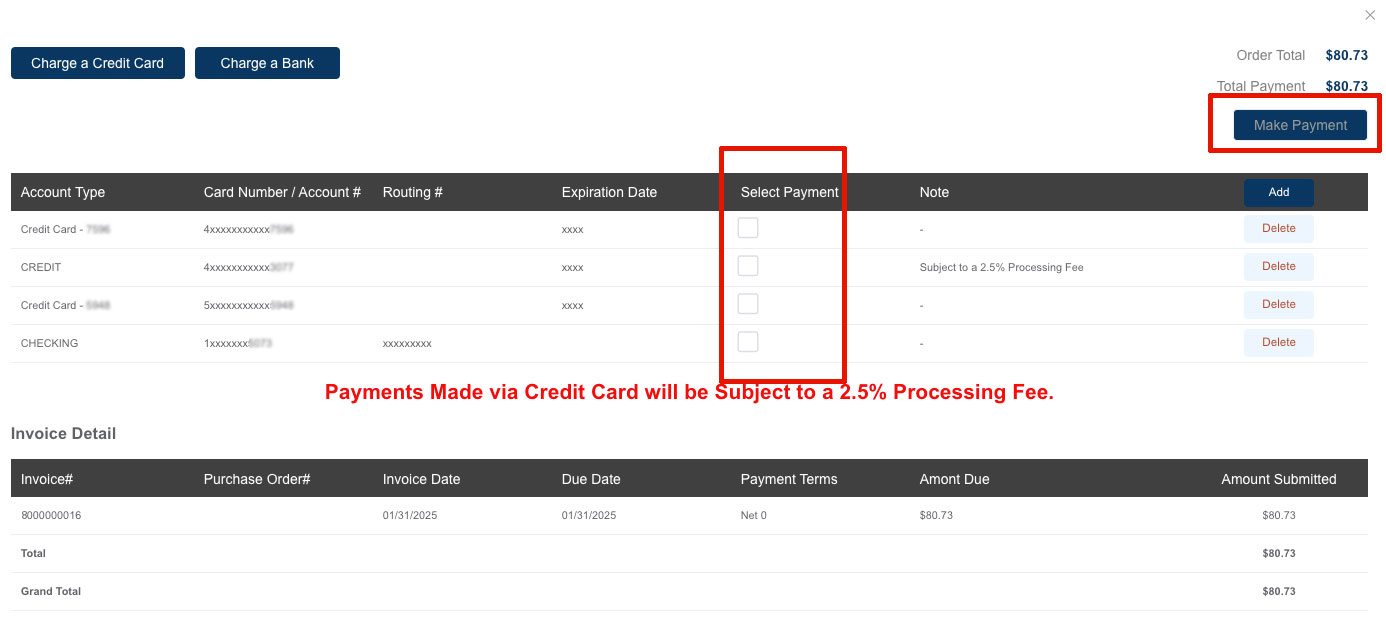
If you already have payment methods under your account, select the payment method and click the Make Payment button.
To learn more view the Make A Payment tutorial video.
How do I add or update the payment methods for my account?
To add a payment method, select an invoice and click the Review Payment button.
Then select the Add button.
Input your information and click the Execute button and your new payment information will be saved.
If you wish to make a payment, select the payment method, then click the Make Payment button. Or “X” out to make your payment at a later time and your payment information will be saved.
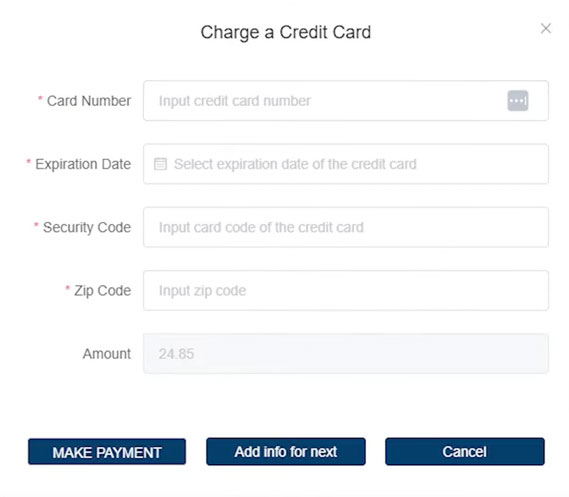
You can also use the Charge a Credit Card or Charge a Bank buttons, but with this method you will make the payment as part of updating your payment information. You can select the Add info for next button to save your new payment method for your next payment.
To learn more view the Update Payment Information tutorial video.
Can I apply a credit I've received to pay on an open amount I owe?
Yes! First select the invoice or invoices you wish to pay, then select the credit as part of your selections.
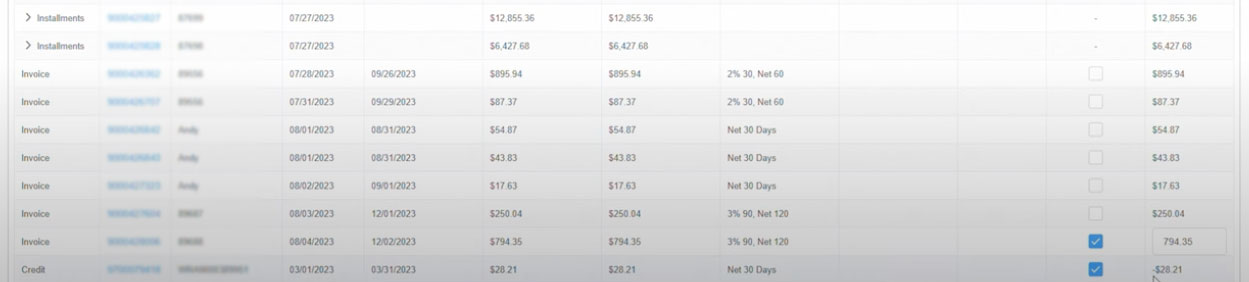 Then click the Review Payment button.
You will see the original amount due, your credit applied, and the new amount due.
Now you can check out as normal.
To learn more, watch our Applying A Credit Memo tutorial video.
How do I download a remittance?
When you make your payment, the final screen will give you the option to download your remittance as a PDF or Excel file.
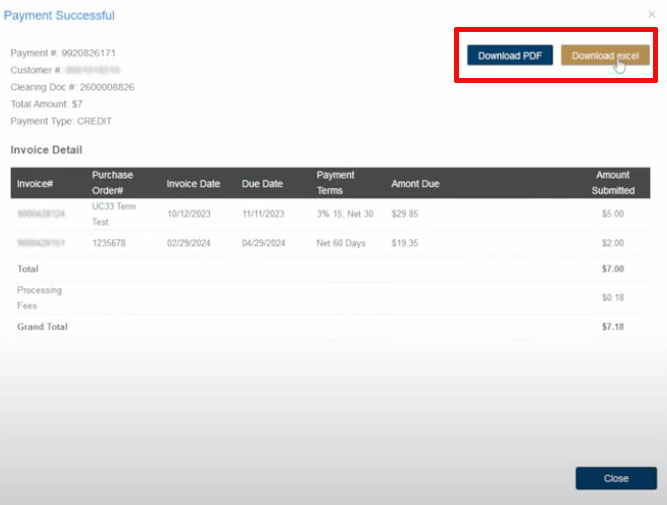
Where can I download an open or paid invoice?
To download an invoice, click on Financial Details -> Invoice, then click the Download button next to the invoice you would like to download.
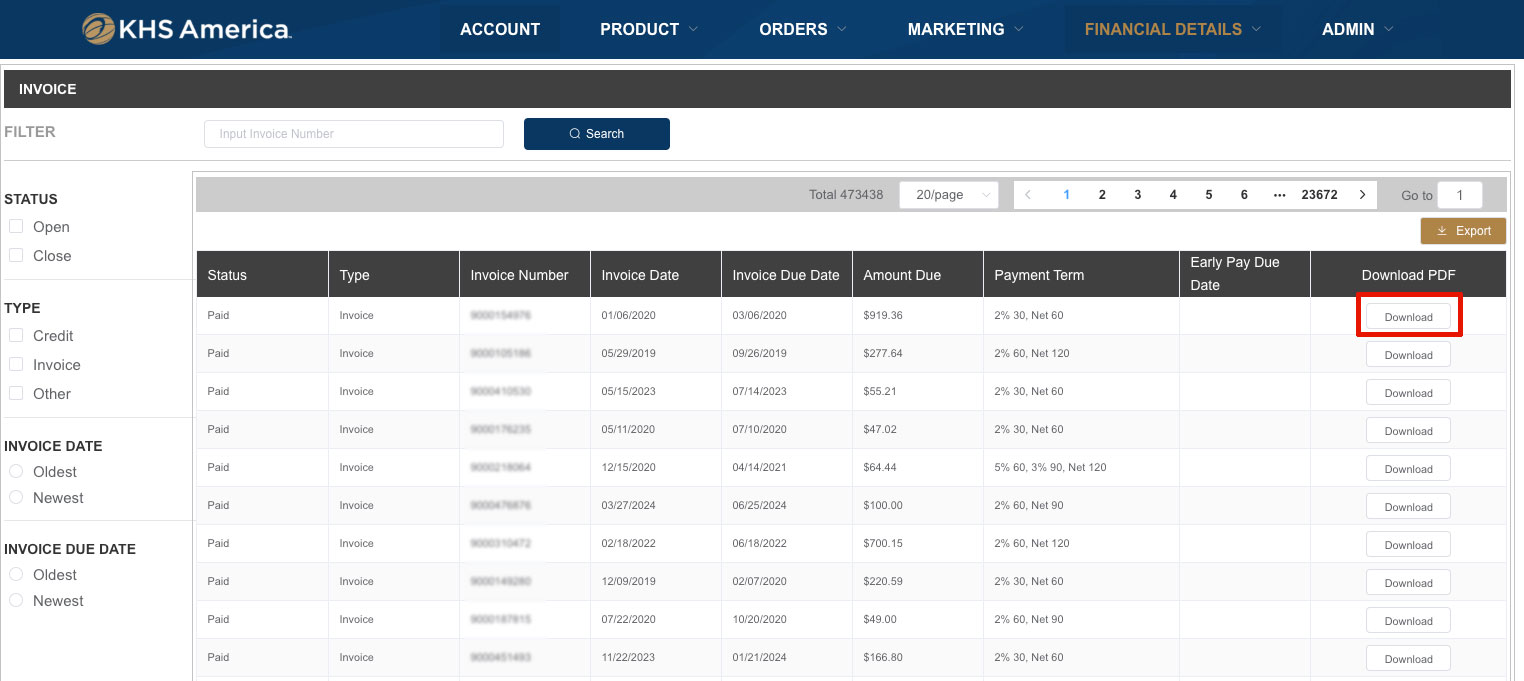
You can search by Open Invoice or Closed Invoice, as well as Credits.
I have an issue with my credit status, what do I do?
To address any account issues, please contact your sales representative or you can email us at service.usa@khsmusic.com or call us at 1-800-446-6010.
Account User Maintenance
Can I add other store employees to our store account?
Yes! The KHS America B2B website is designed for stores with small and large employee assignments. The store owner is automatically set up as an Admin of the store account. The store owner can assign another employee to be an Admin, or one of many other roles from Finance to Purchasing to Parts and even a “view only” option.
To add a new user to your account, click on Admin -> Set Up User
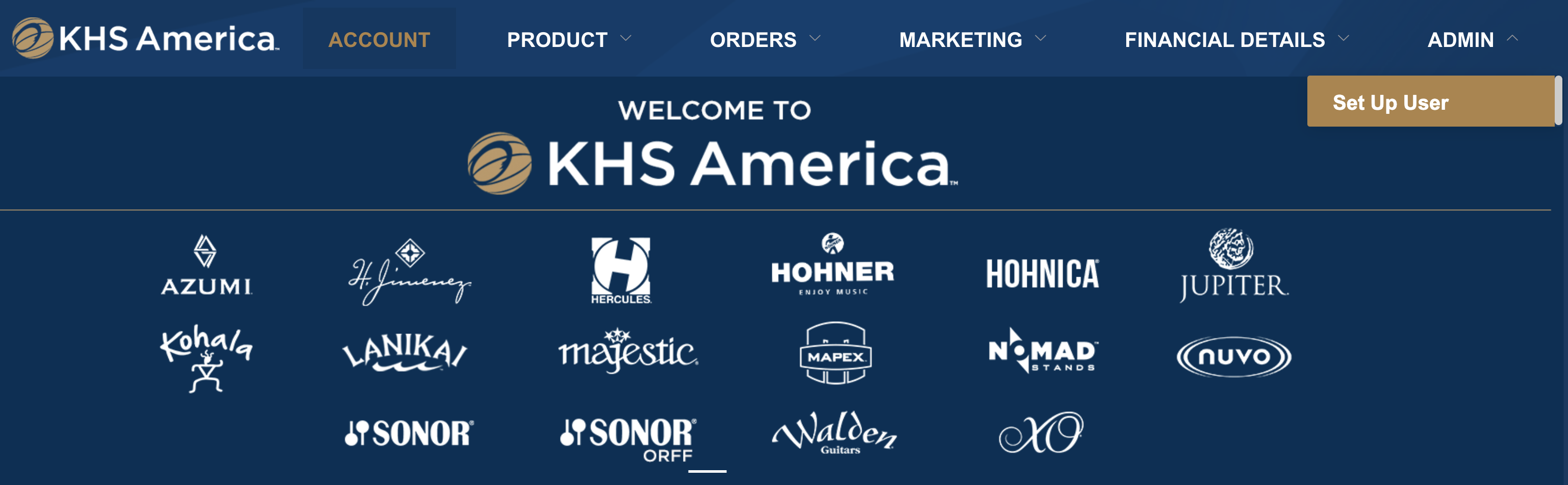 Click the Add button then fill out the users information. Enable the account and select the types of emails the users should receive (if any).
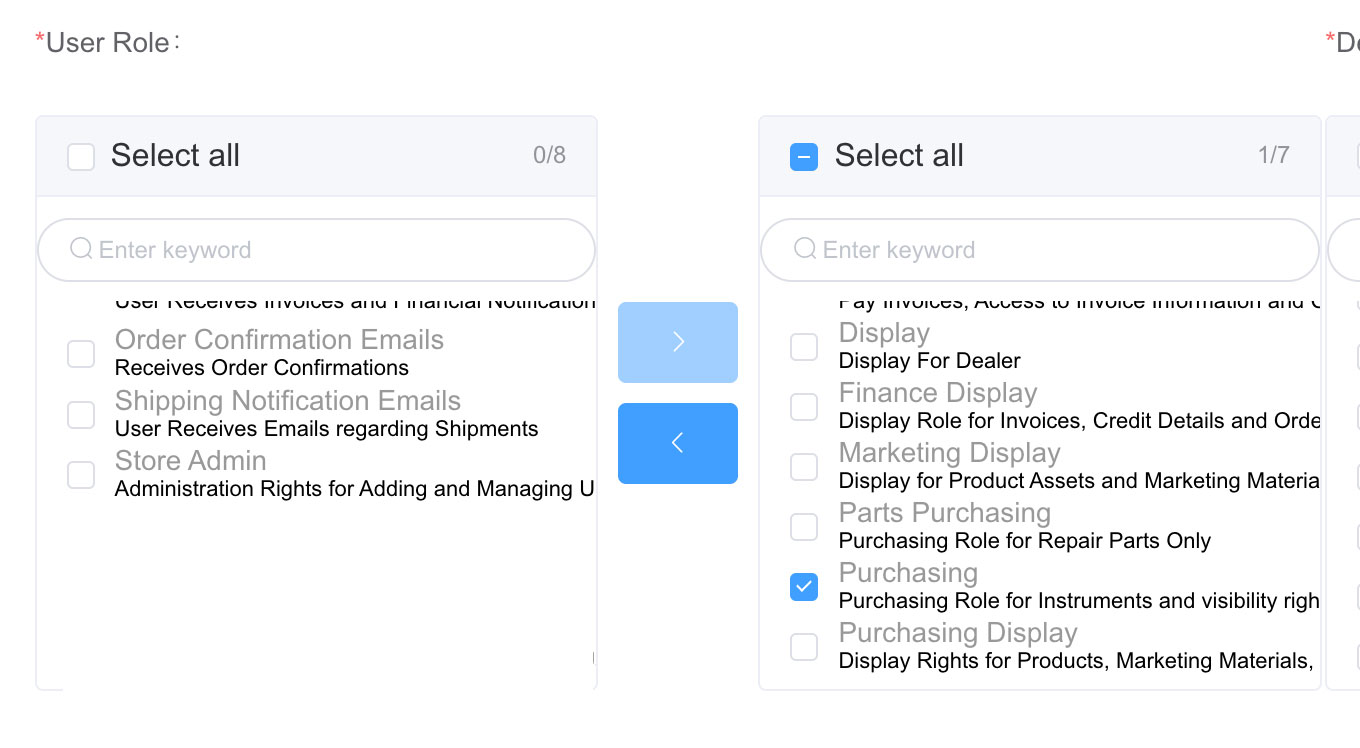
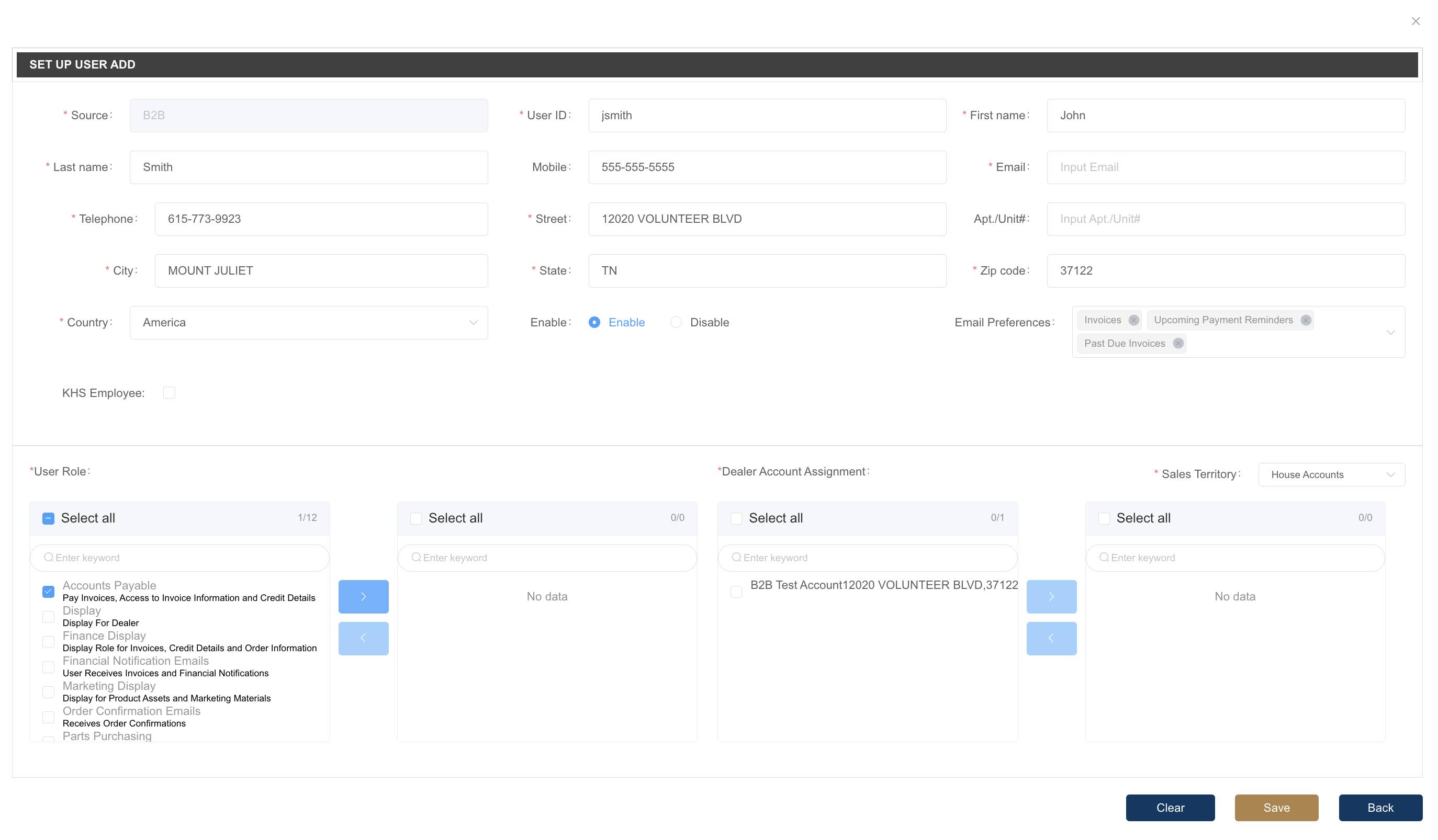 Next select the role(s) for the user by clicking on the role on the left side to select it, then clicking the right facing arrow to move the selection to the right.
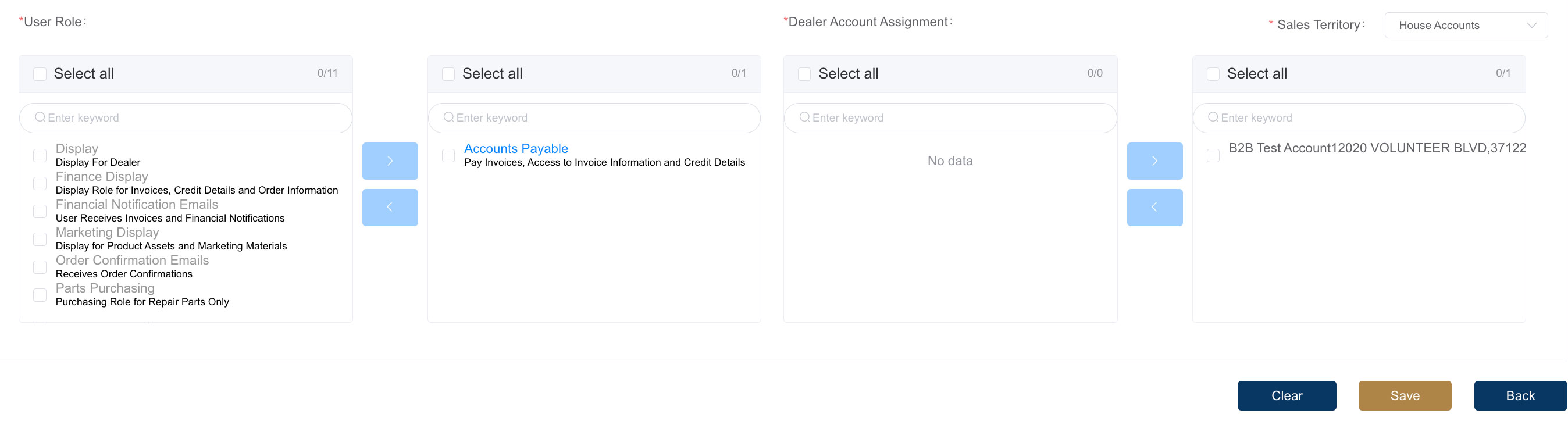
Don’t forget to click Save!
Can I control the access that store employees have?
Yes! There are roles available for your finance team, your sales team, even your marketing team. By assigning the roles you would like your employees to have, you control what they are able to view and what actions they can take inside the B2B portal.
For example, for your Accounts Payable manager, you can select the Accounts Payable role.
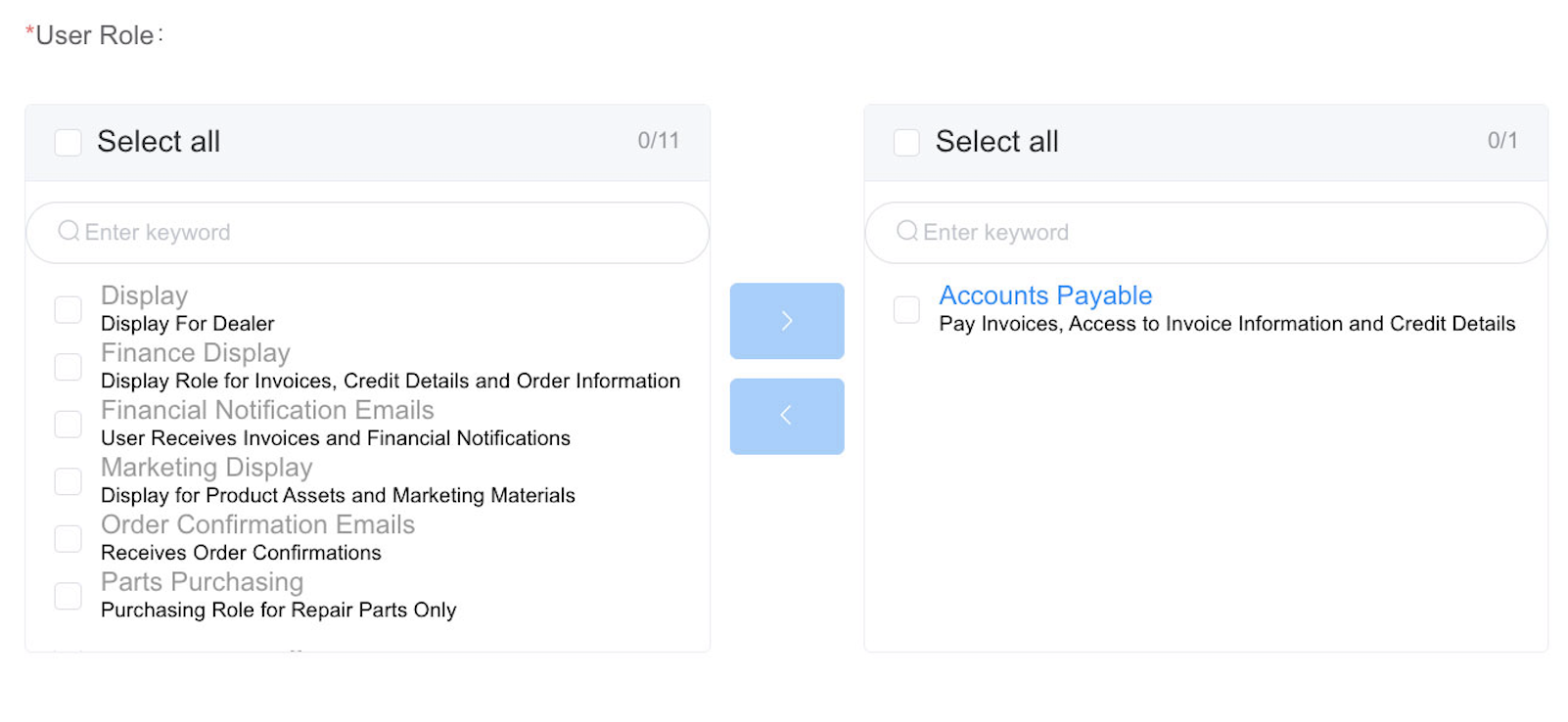
For an employee that should only have access to view marketing assets, you can select the Marketing Display role.
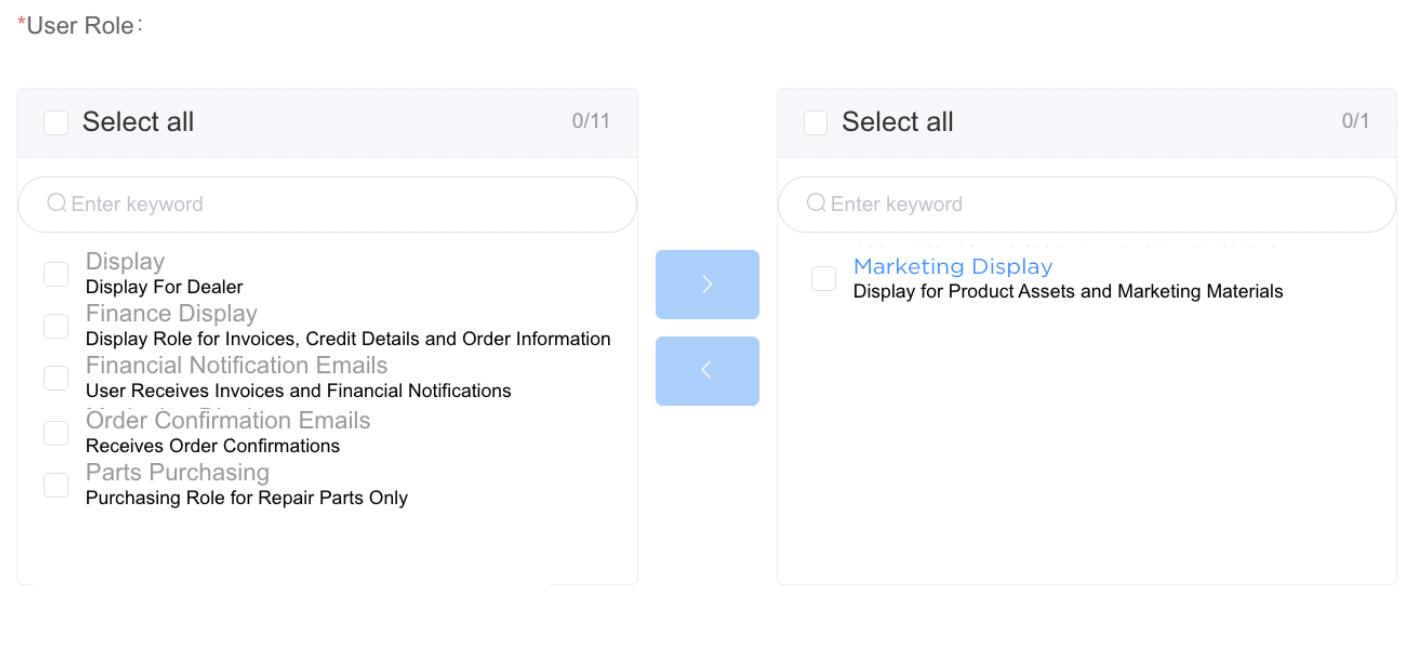
There is even a Parts Only role should you need it.
How do I remove an employee from our account or change their access?
To change the access for an employee you can adjust the role(s) assigned to their account by clicking on the role and moving it back to the left column. Using this method, you can add or remove roles as needed.
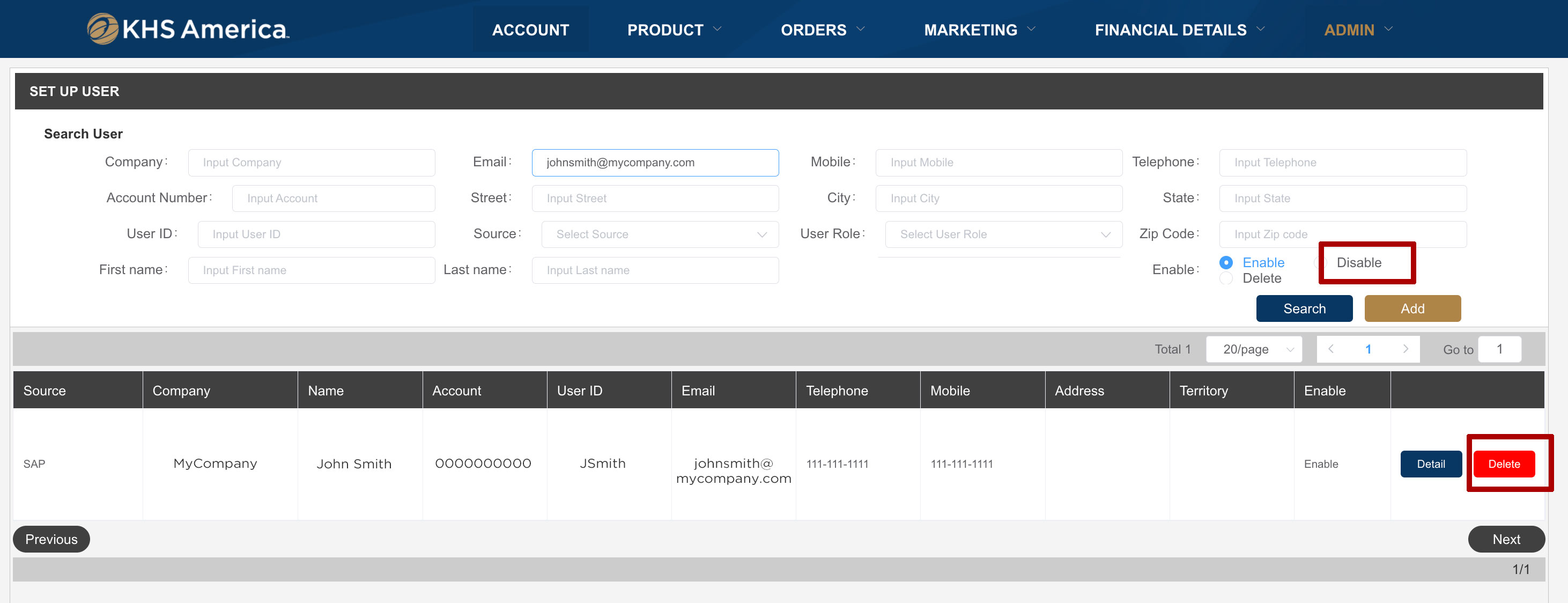
To completely remove a user on your account, select the user you wish to remove and click the “Disable” radio button and save your changes. You can also use the red Delete button next to their name. Once disabled or deleted, the user will no longer be able to login to your store account.
Marketing Assets
Where can I download a build sheet for your products so I can add them to my website?
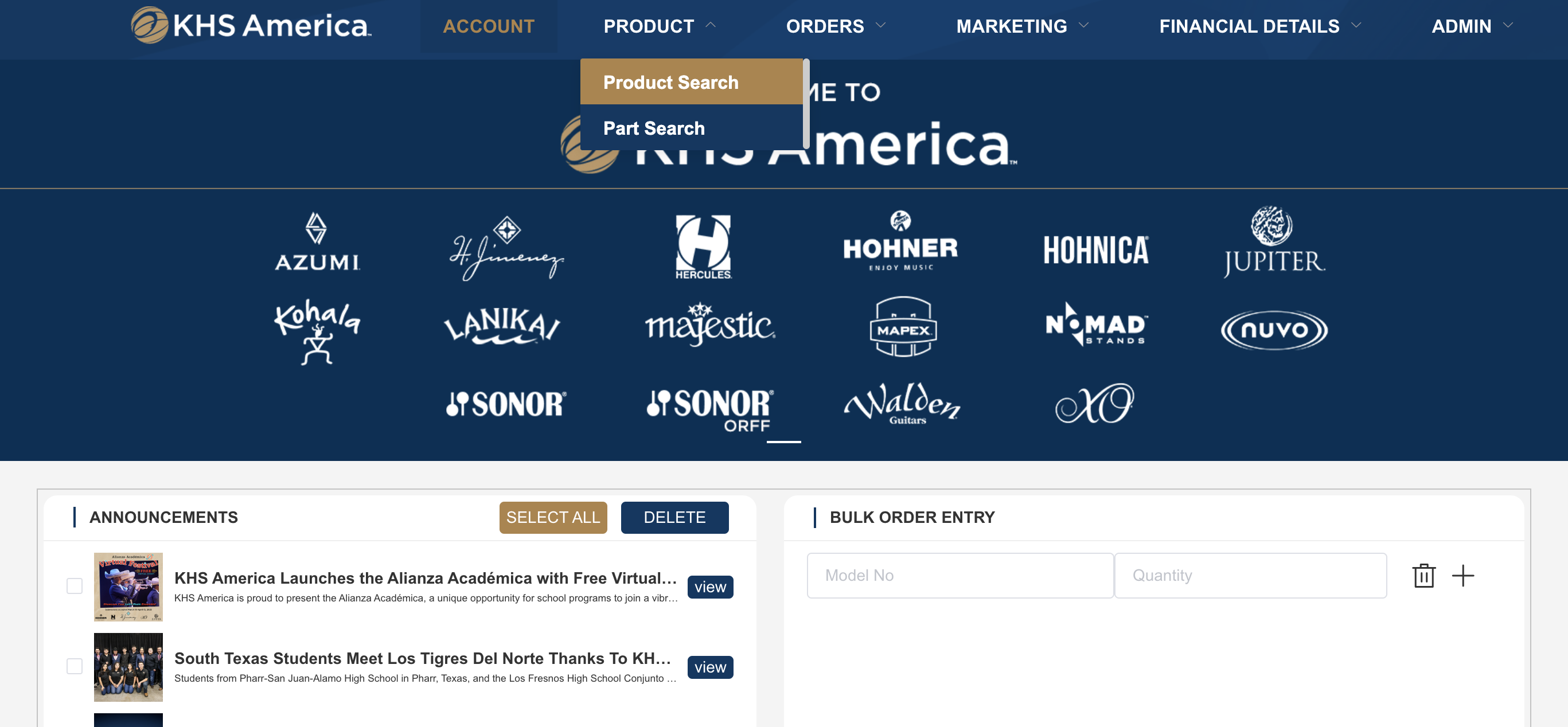
In the top menu, click on Products–> Product Search then use the filter menu on the left to select the brand that you need a build sheet for and click Search.
Now on the right, click the Download Build Sheet button and an Excel file will download to your computer.
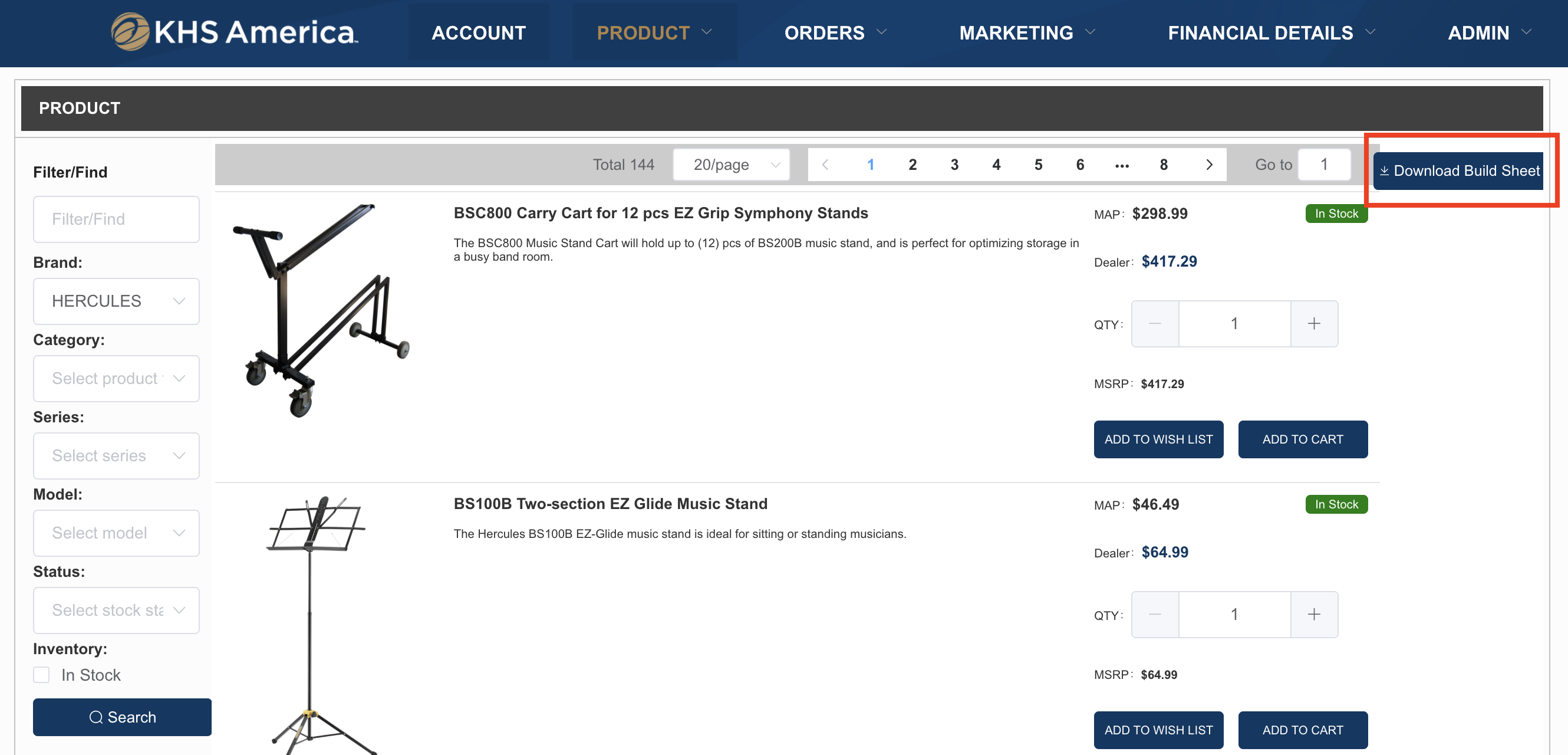
The build sheet will include all the details you need to add our products to your website.
If you need assistance, contact us at service.usa@khsmusic.com or call us at 1-800-446-6010, and let us know what you need.
How can I get high resolution images of your instruments to add to my website?
Select Marketing in the top menu, then the brand.
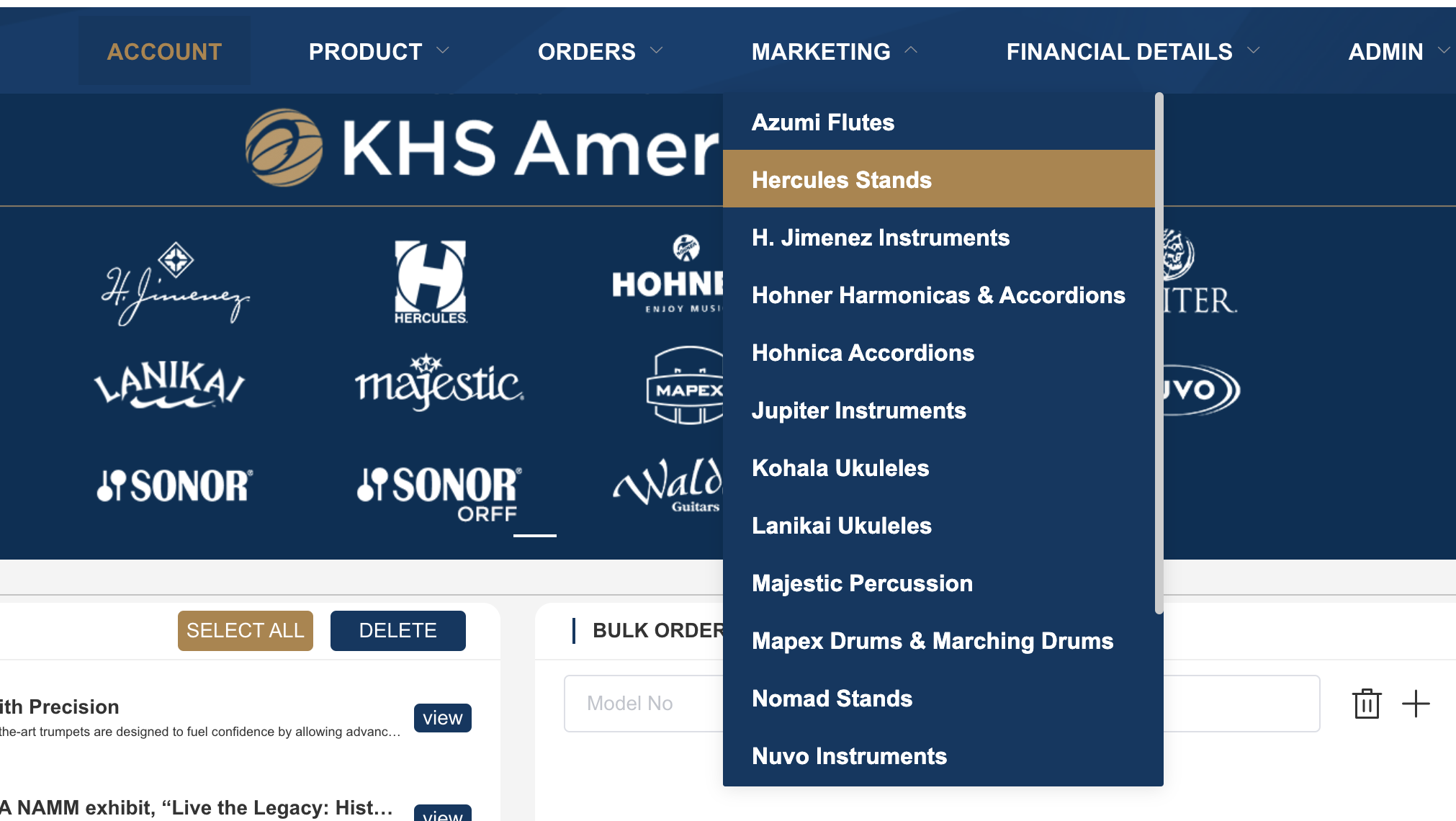
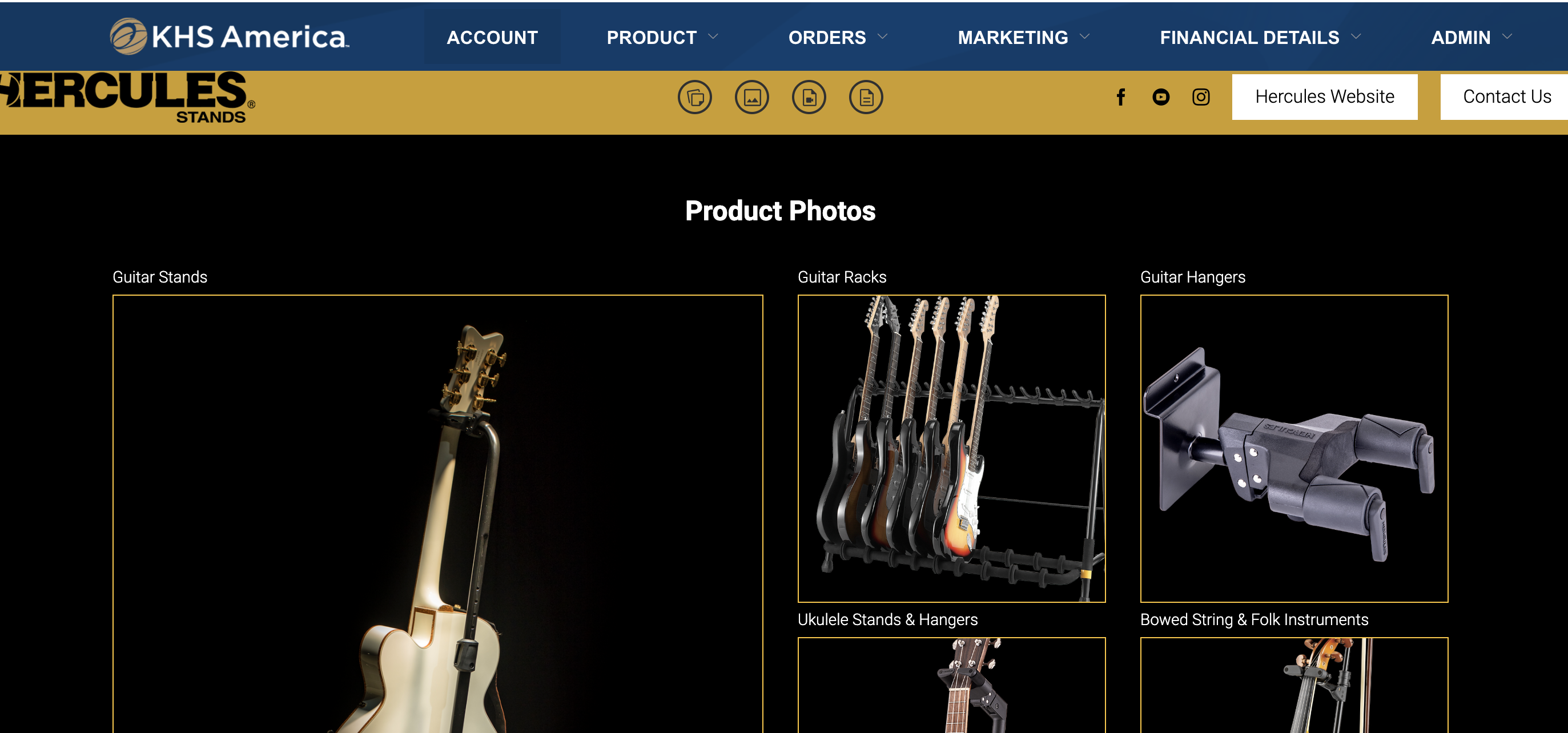
Click on any image or search to enter the brand portal.
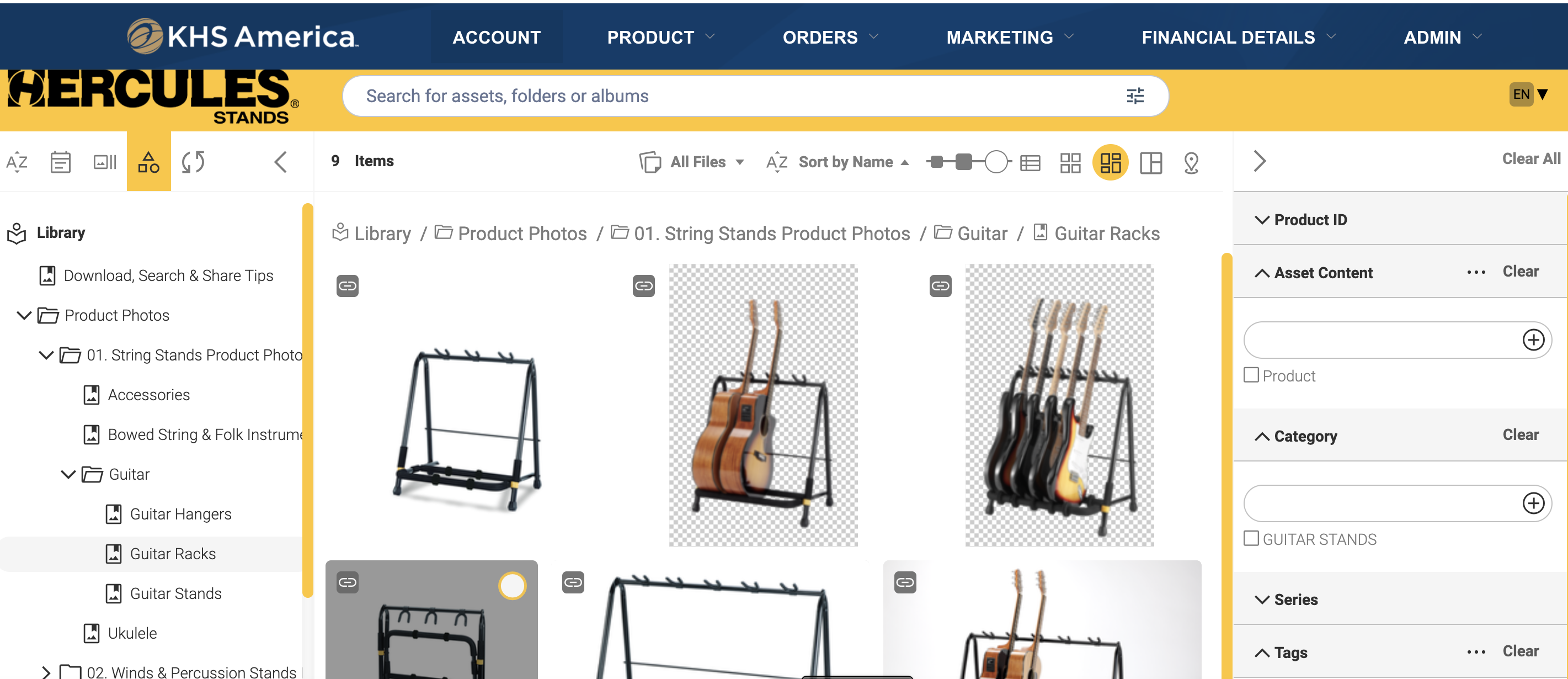
From the brand portal you can use the left side menu to find product categories or series. You can also use the search field and filters to find products.
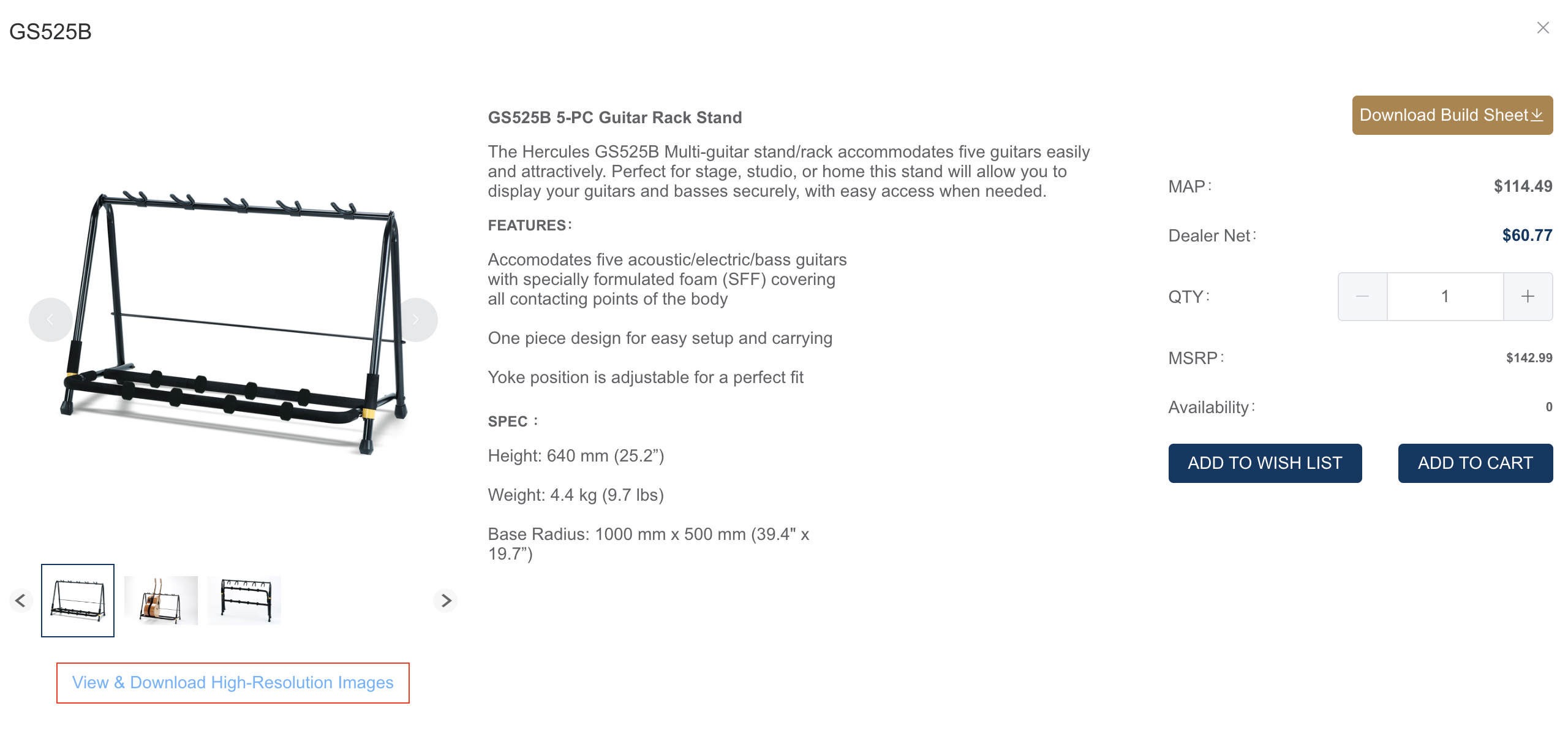
Alternatively, if you are viewing the product in the B2B Product Search area, there is a high resolution link on each product listing.
Do you provide assets for promotions that I can use on my social media sites?
If promotional assets are available, you will find them on our Canto DAM platform.
Select Marketing in the top menu, then the brand.
Click on any image or search to enter the brand portal.
From here you can use the left side menu to navigate to “Events & Promotions”.
I can't find the assets I need, will you make one for me?
If you can’t find the assets you need, we may be able to make them for you. Contact us at service.usa@khsmusic.com and let us know what you need.
Contact
Still need help with the B2B Portal, or have other questions? Contact us!